If you’re a cricket fan, you already know — Rohit Sharma wallpapers just hit different
But what if your wallpaper wasn’t just a static image?
👉 What if it moves, feels cinematic, and looks 4K premium on your lock screen?
That’s exactly what we’re going to create today. A Rohit Sharma 4K live wallpaper that looks insane on any phone 📱🔥
Step-by-Step Tutorial For Iphone and For Andriod at the end of this blog.
- 📥 Step 1: Download the Required App
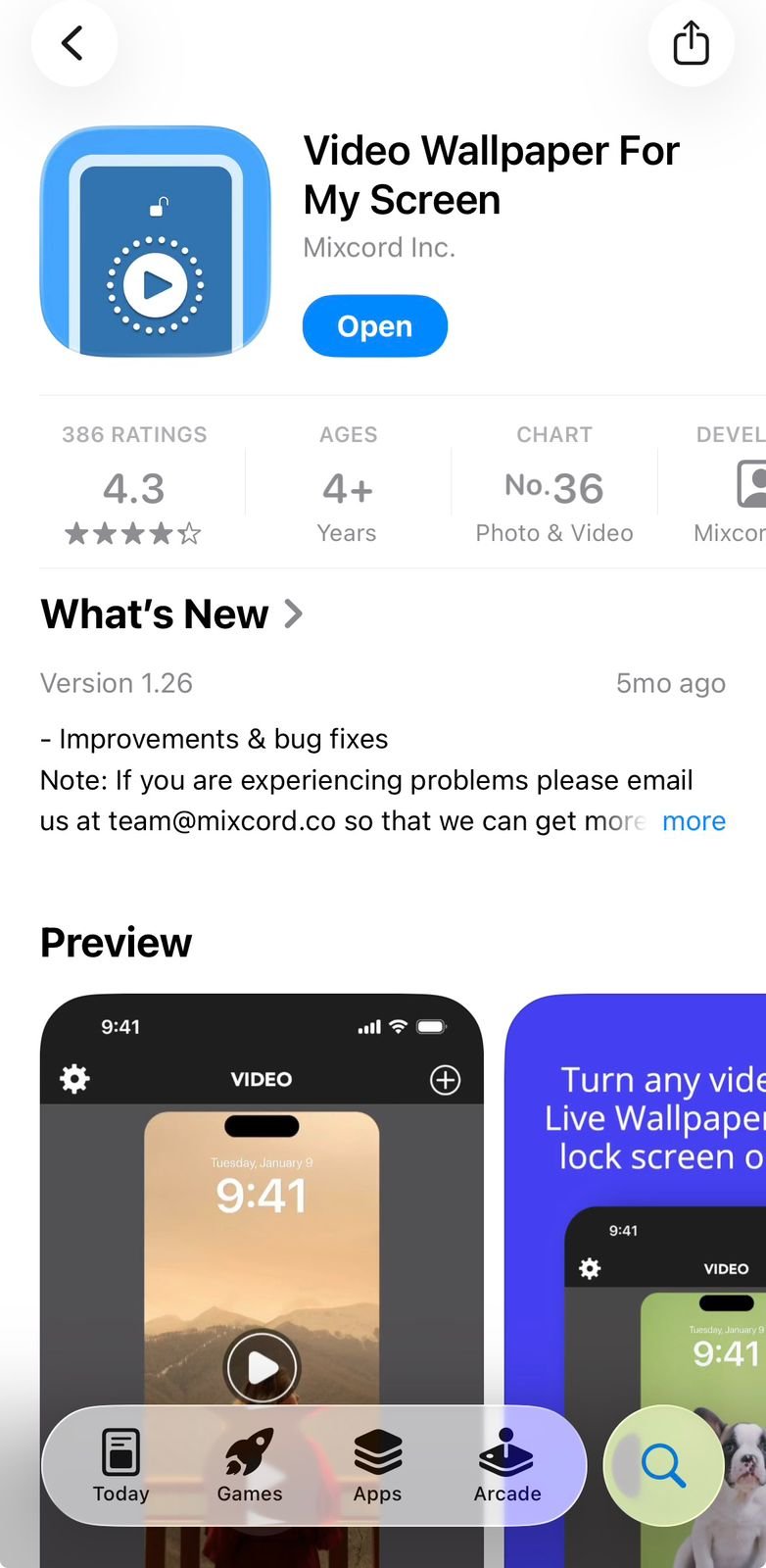
First, open the App Store on your iPhone.
Download this app:
Video Wallpaper for My Screen –> https://apps.apple.com/in/app/video-wallpaper-for-my-screen/id1497777142
- ⬇️ Step 2: Download the Wallpaper Video I attached at the end of the blog
Before continuing, make sure you download the Rohit Sharma 4K Live Wallpaper video.
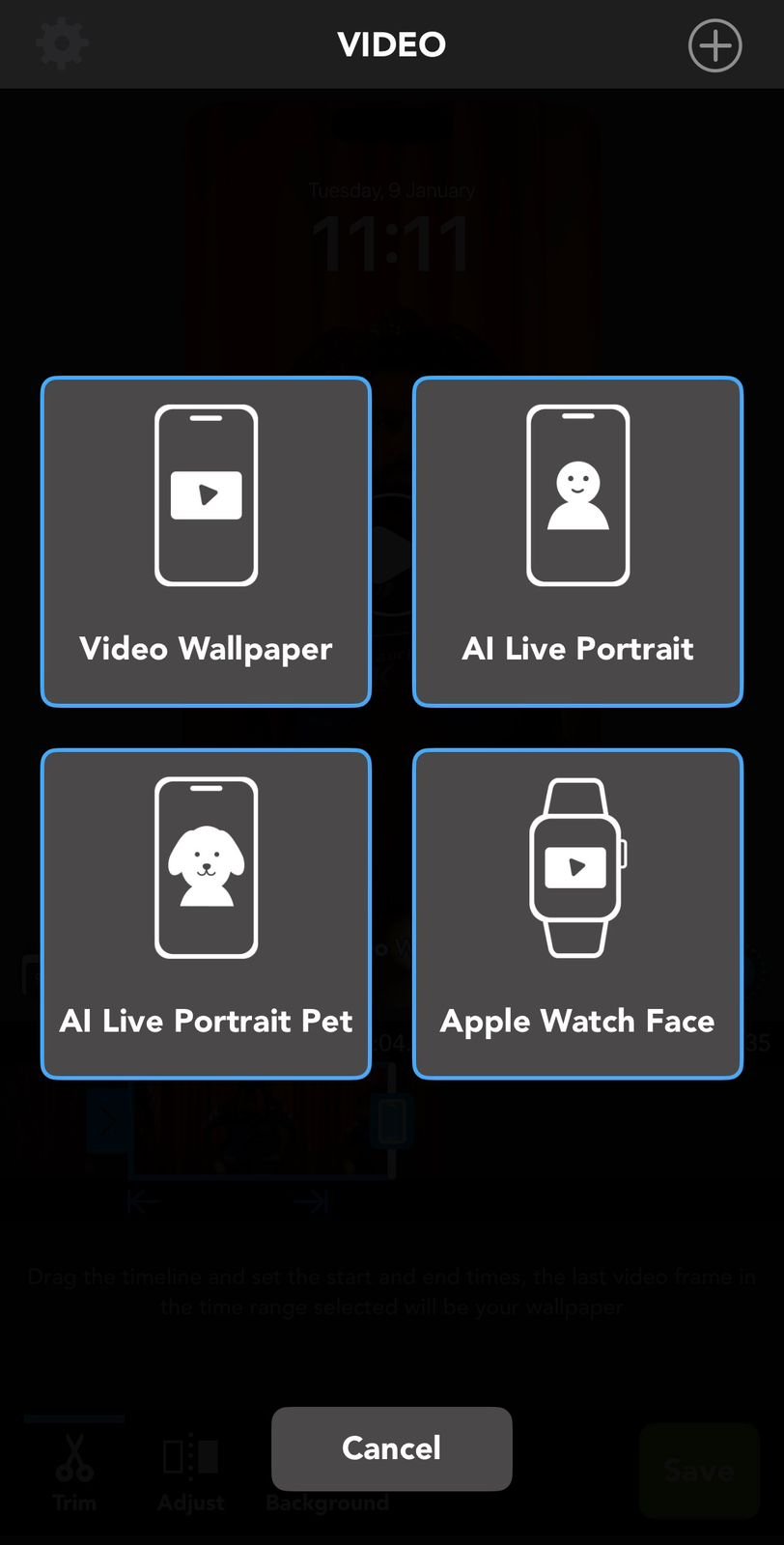
- 🎬 Step 3: Open the App and Upload the Video
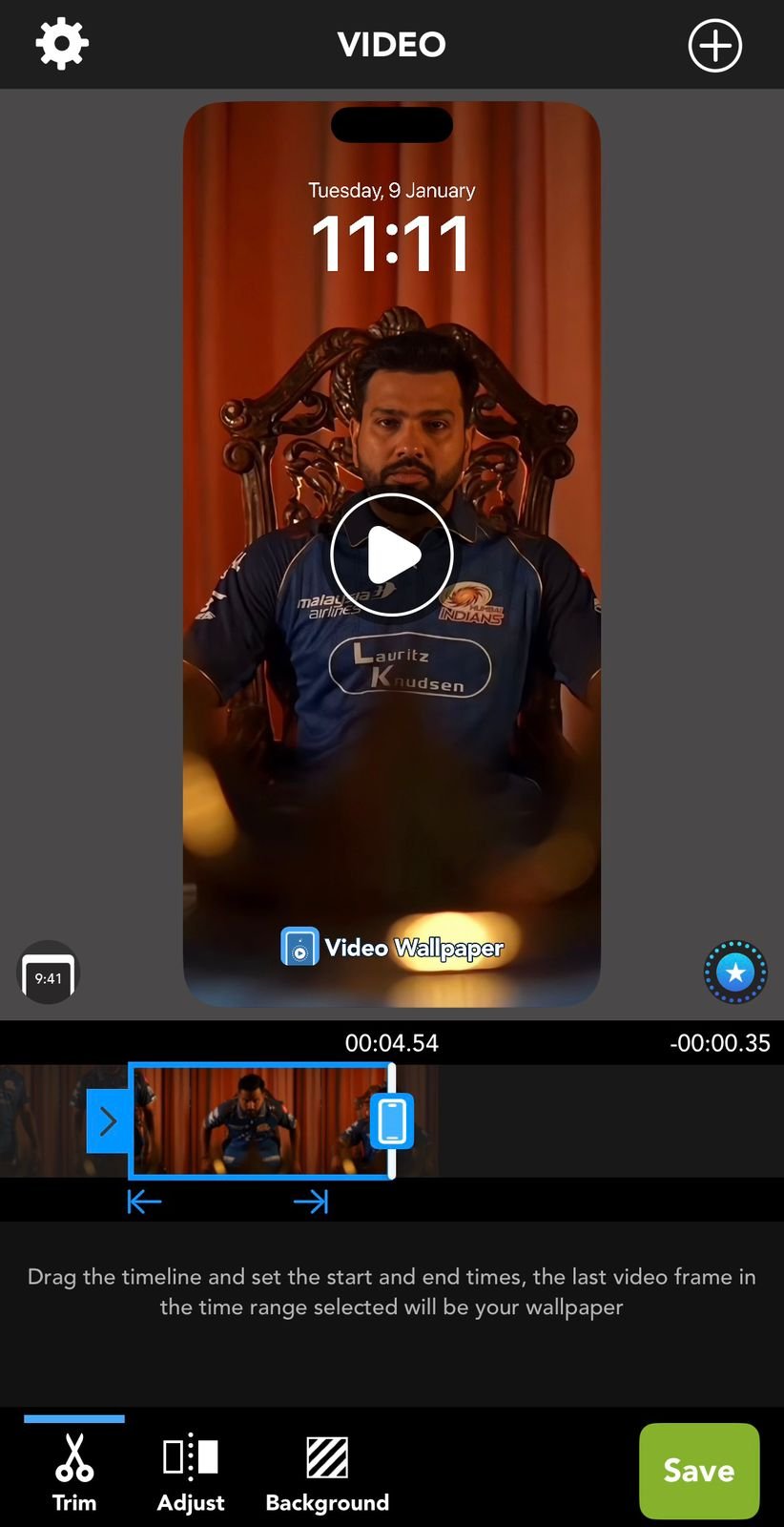
- 🎬 Step 4: Drag and drop the clips according to your timing
- 🎬 Step 5: Click Save
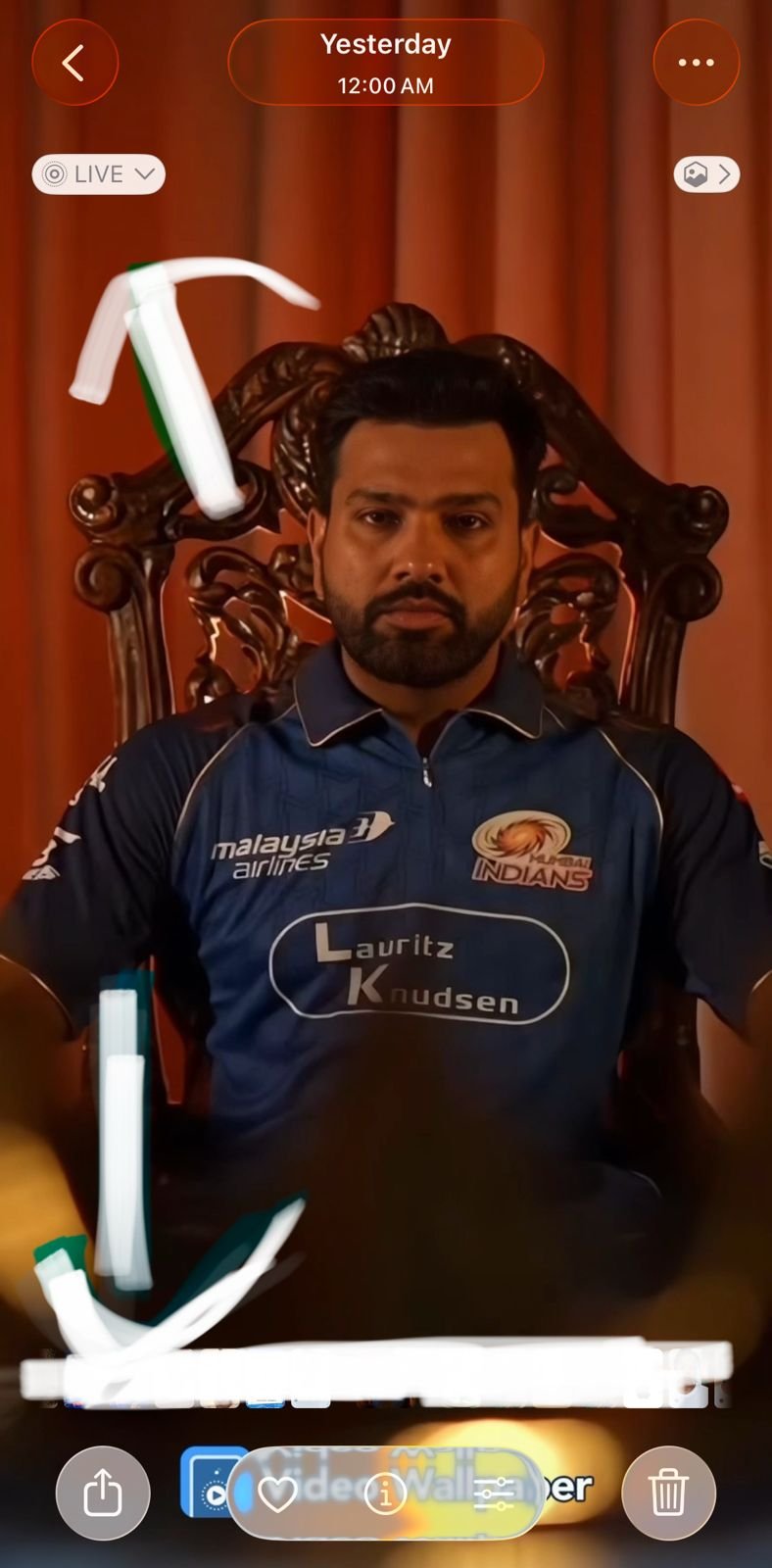
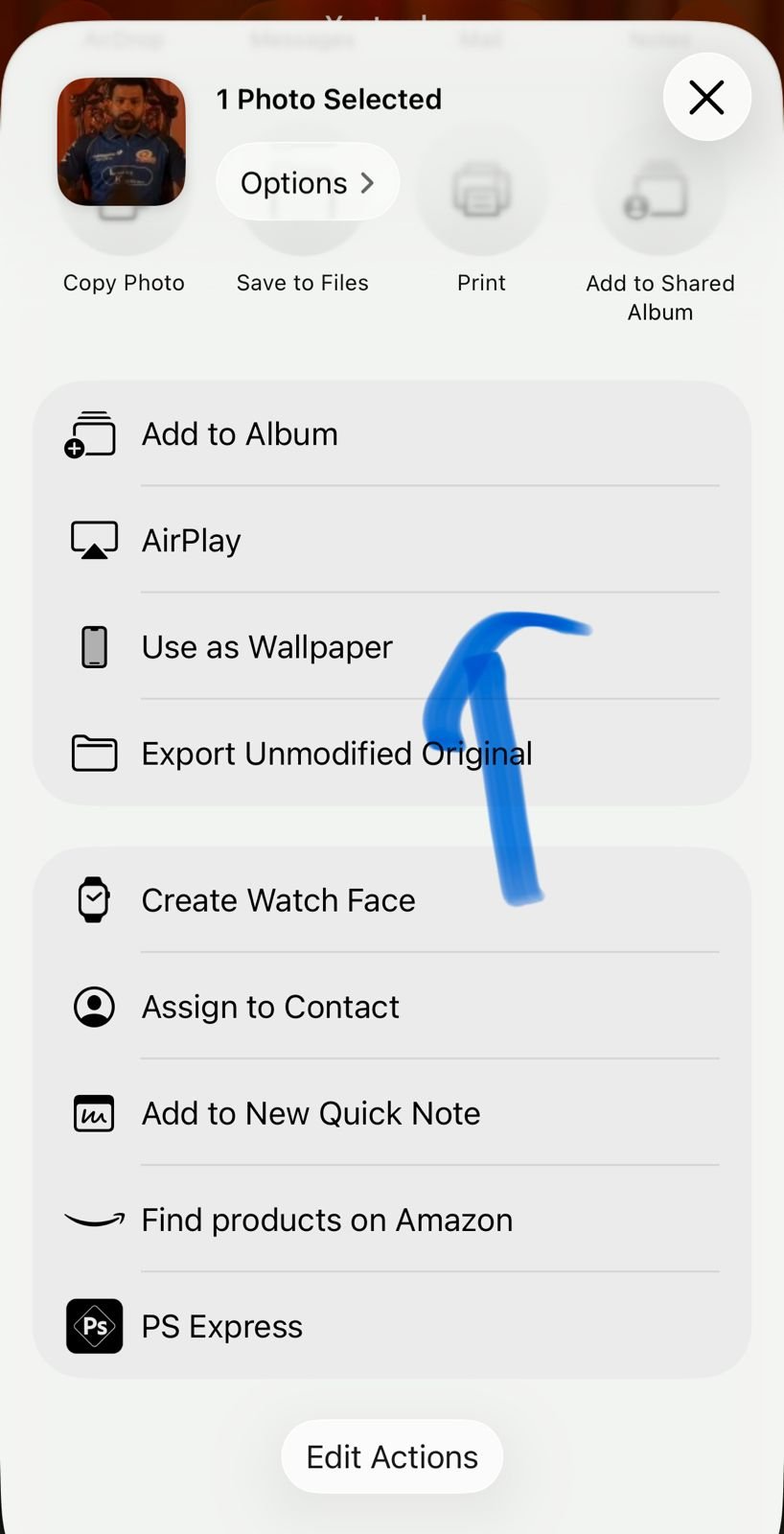
- 🎬 Step 6: Open Gallery and Tap Share icon → Select “Use as Wallpaper” 📱
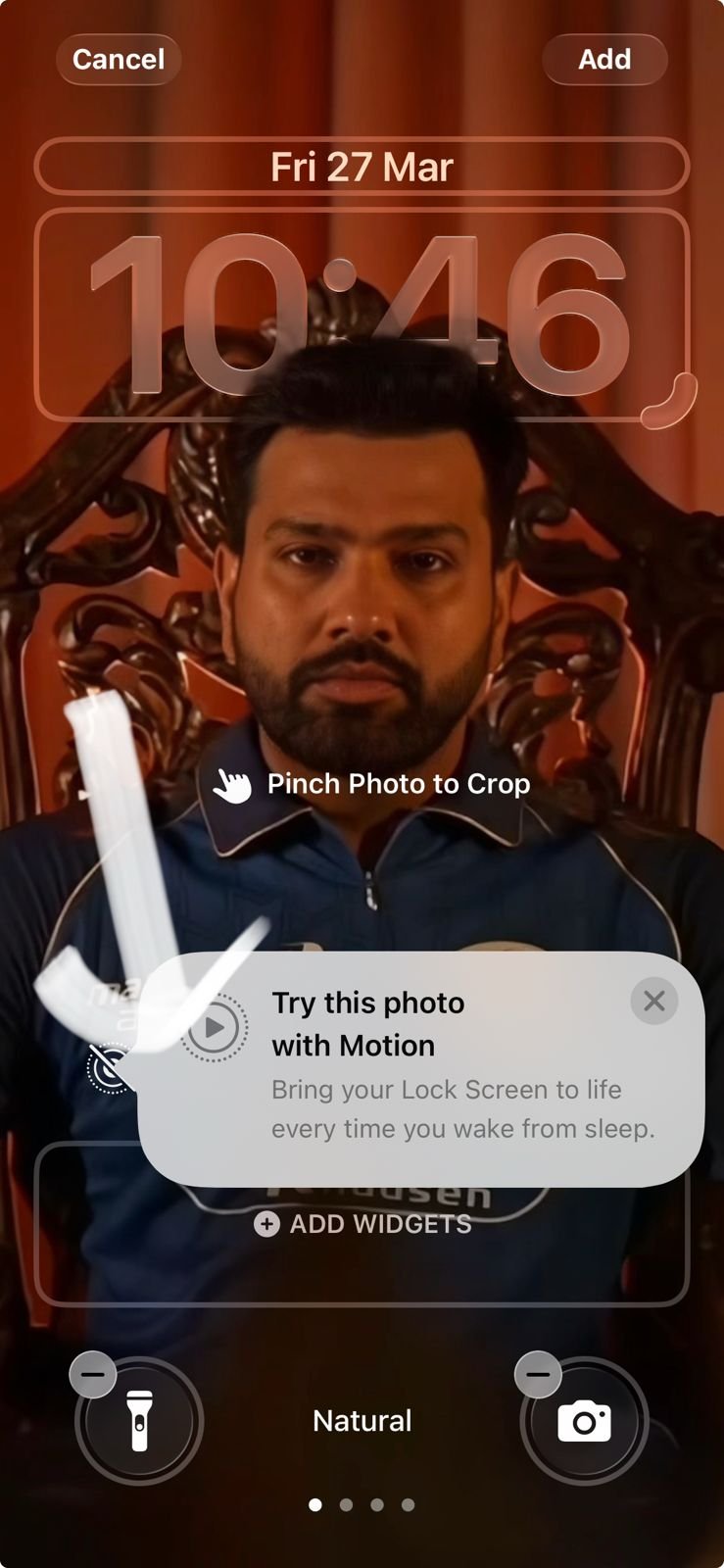
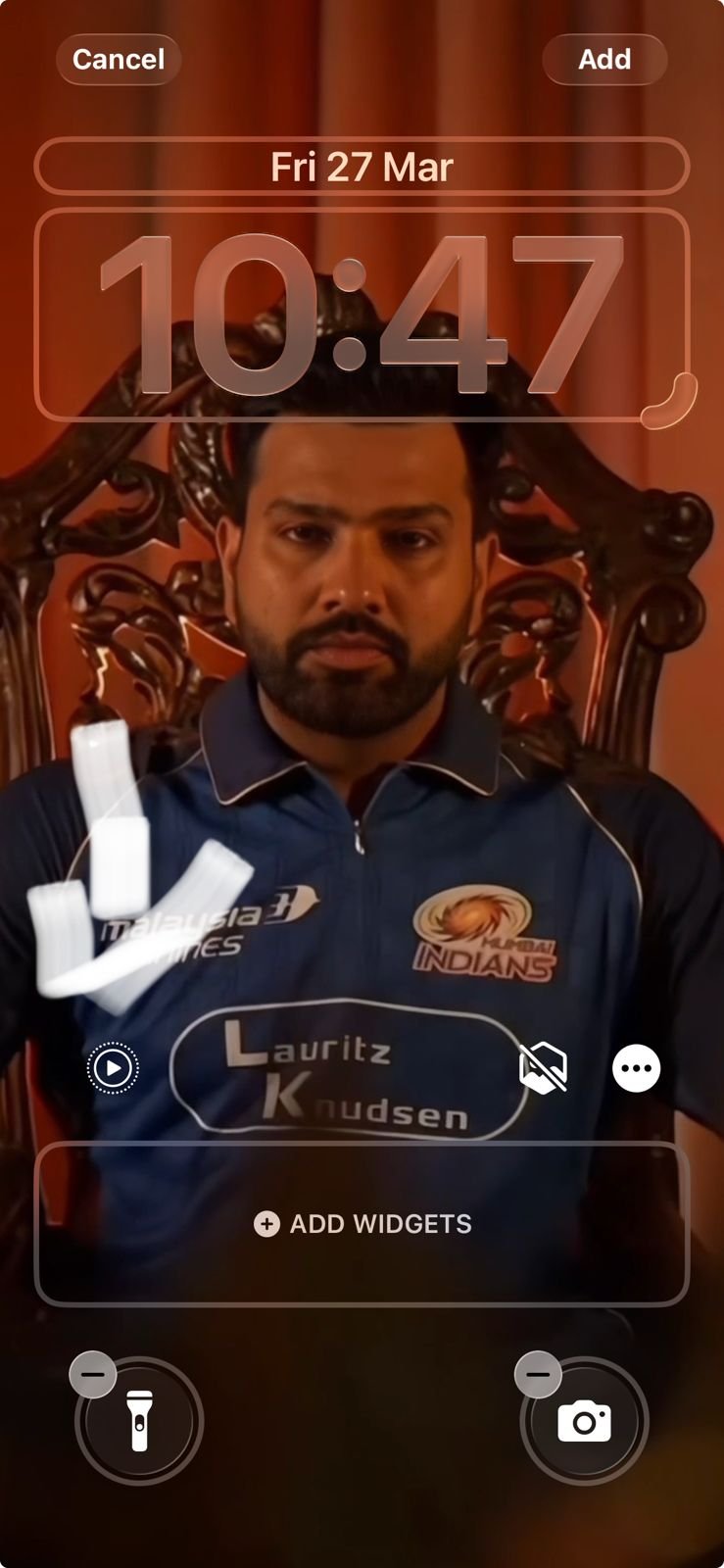
- 🎬 Step 7: Adjust position & set as Lock Screen 🔥
- Enable Live Motion button and check
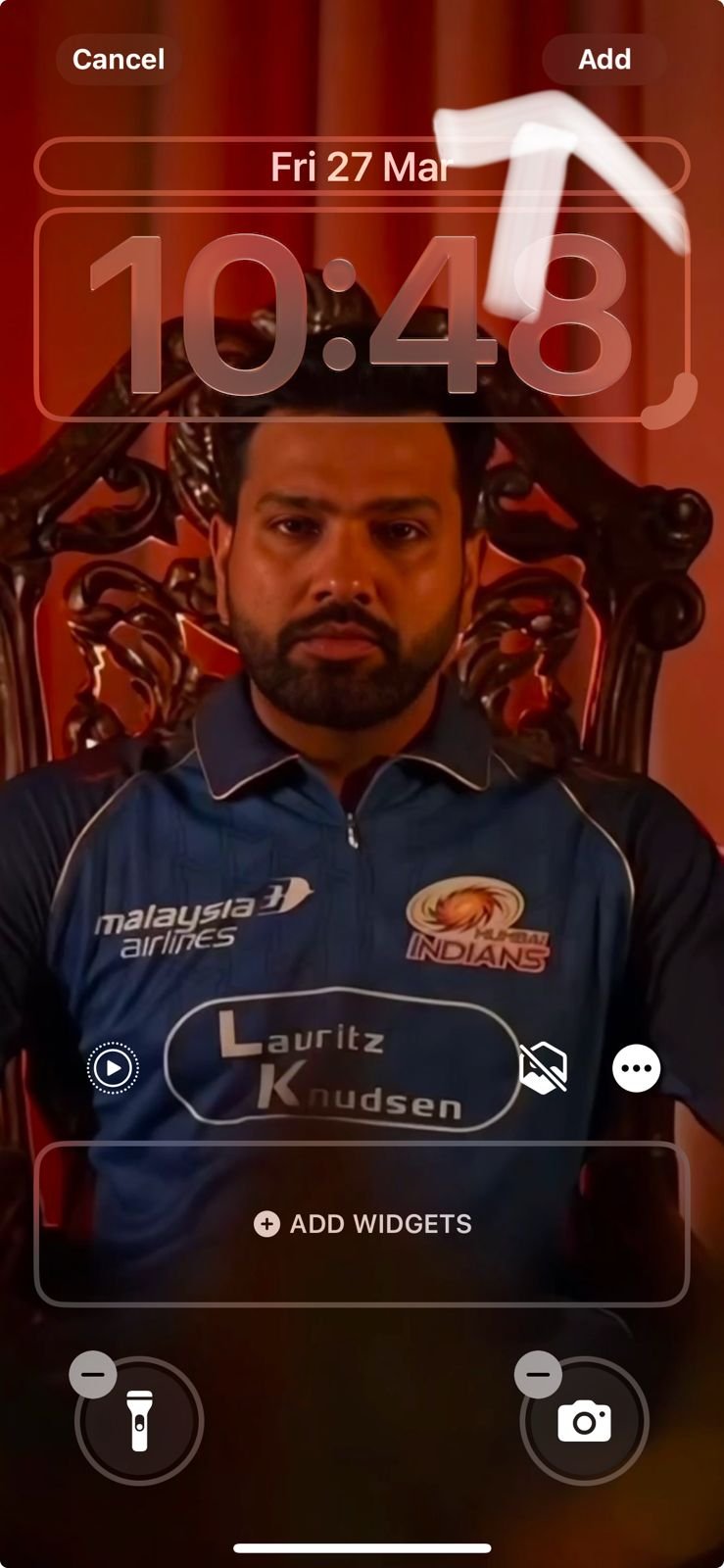
- 🎬 Step 8: Click Add to Save as Lock Screen, Thats it !
We’ve also provided a simple video tutorial to make things easier 👇
- Quick Recall --> Convert Video to Live Wallpaper
- Open the app you downloaded
- Import the wallpaper video
- Adjust duration if needed
- Tap Convert to Live Photo
- Save it to your gallery
- After Saved Live Wallpaper From the App, Now Go To Gallery/Set as Wallpaper
- Go to Settings/Photos → Wallpaper or Go to Gallery and Open the Saved Live Photo And Click Set as Wallpaper.
- Tap Add New Wallpaper
- Select the Live Photo
- Enable Live Photo option
- Set it as Lock Screen
- Scroll down to see Drive Link For Downloading Video
For Andriod User's
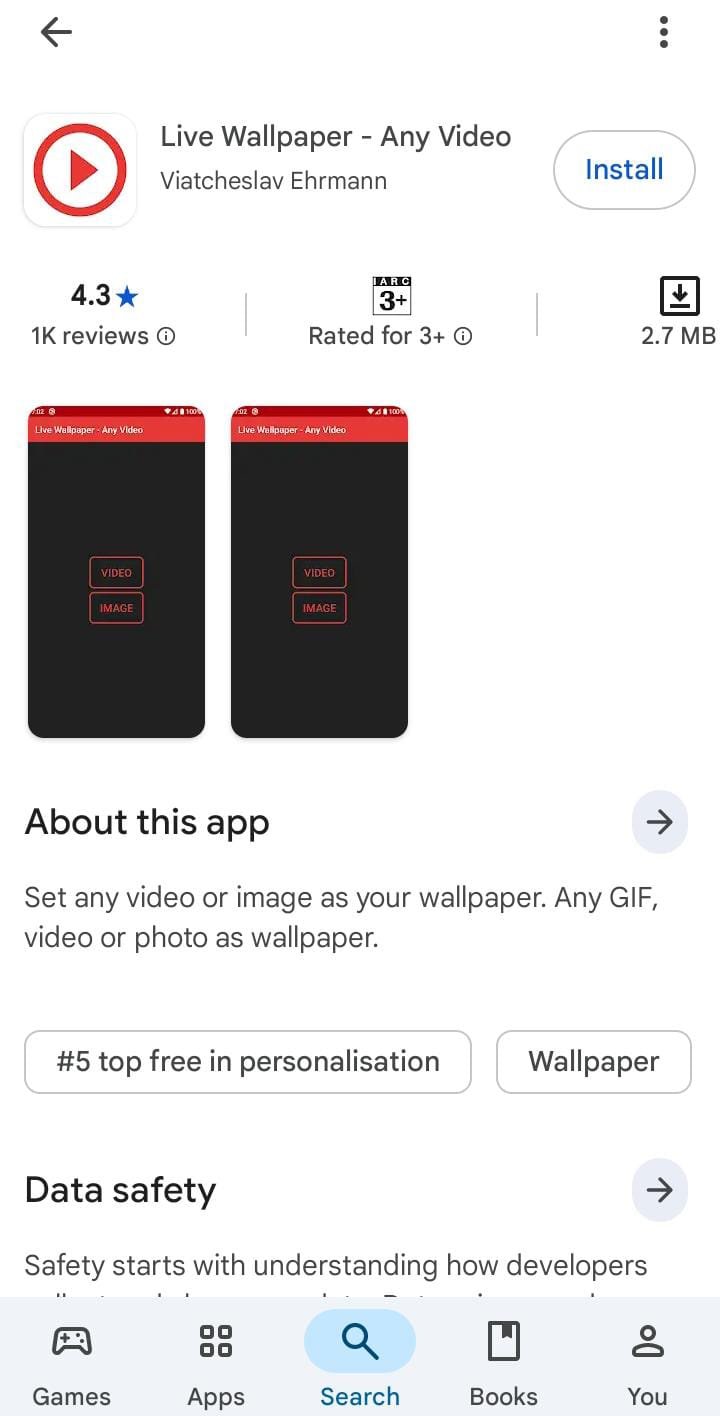
App Link –> https://play.google.com/store/apps/details?id=com.graytsar.livewallpaper
Method 01 : Setting it on Android is easy 👇🔥
Open the link and download the Video 📥
Go to Gallery / Photos
Select the downloaded video
Tap “Set as Wallpaper” or “Live Wallpaper”
Method 2 : ⚠️ If you don’t see that option:
➡️ Install “Video Live Wallpaper” from Play Store
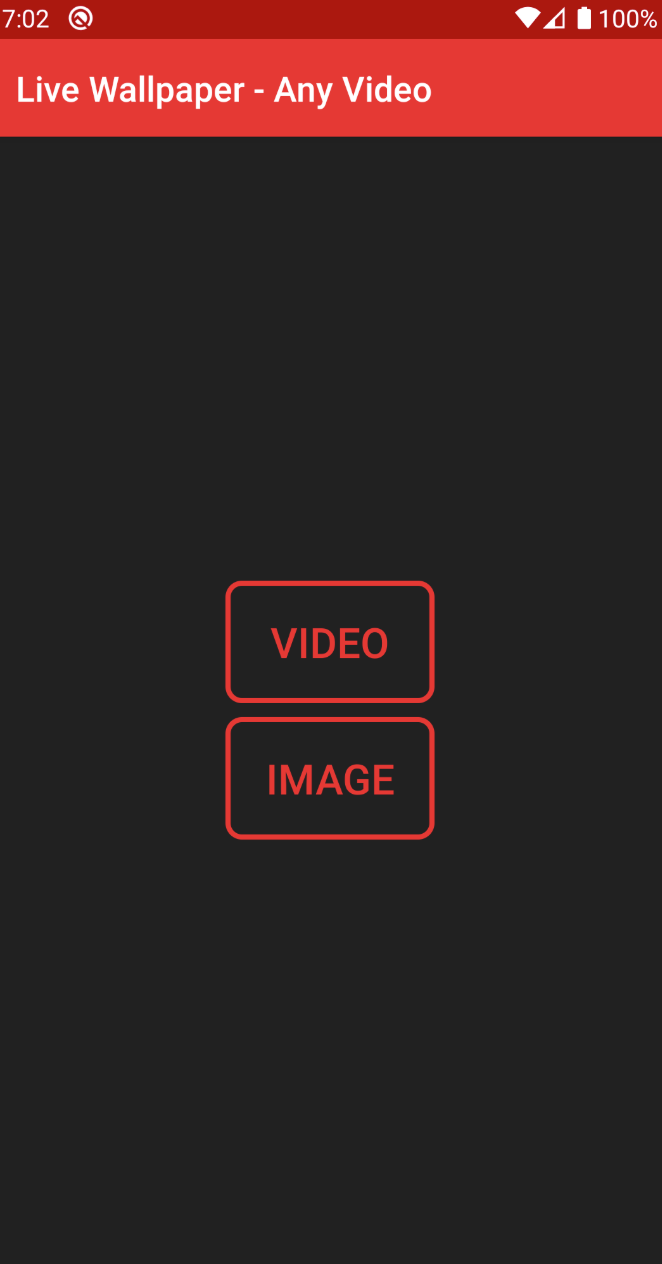
➡️ Open the app & select your downloaded video
➡️ Tap “Set as Wallpaper”
Then you can set it easily 👍
Try it and let me know 💙
- Still confused? Check out the YouTube tutorial below after timer ends 👇
If you're unable to follow the steps, no worries
Please wait a few seconds ⏳
After the timer ends, you’ll get the YouTube tutorial link .
⬇️ Download Rohit Sharma Live Wallpaper
Please wait for the timer to finish ⏳
Once it ends, you’ll get the Google Drive link for Rohit Video (Downloadable Format)
Here is The Rohit Video Link (Downloadable Format) --> https://drive.google.com/file/d/12cei2GkQK_0Rxidzboqep90GAJcBoMiz/view?usp=drive_link
And
Here is the youtube video tutorial link –> https://youtube.com/shorts/NIk8Oz3ibRE?si=4gctp4mGN0Wbkgu4